Table of Contents
Introduction
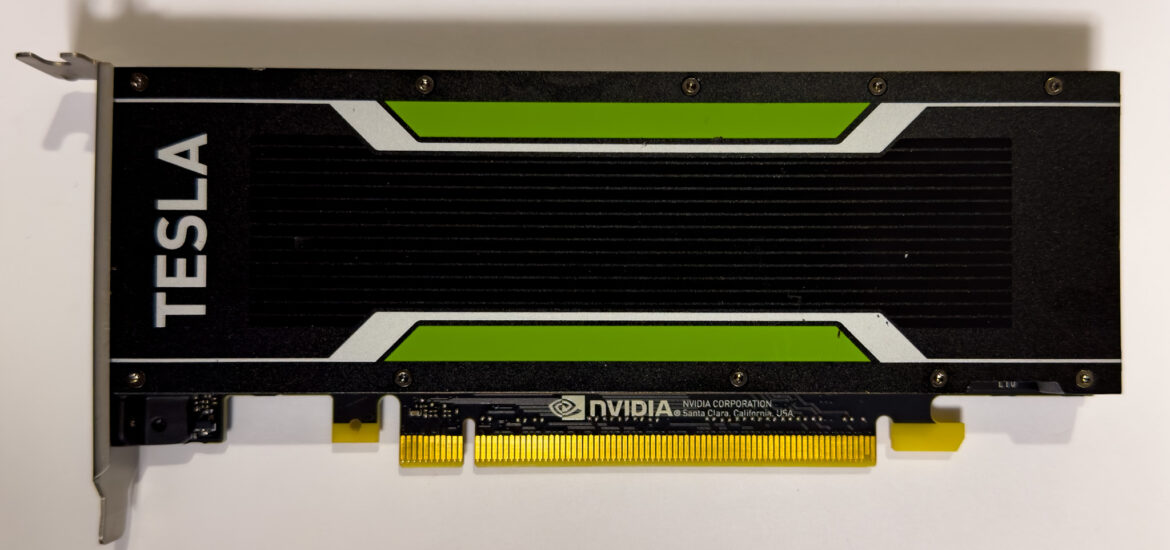
Recently, I came across several very convenient Nvidia Tesla P4 cards on the second-hand market in China. Since the Tesla P4 is a half-height, low-profile graphics card and doesn't require an external power connector, it's particularly well-suited for use on 1U servers. I therefore acquired a few to test vGPU functionality. This article will explain how to use Nvidia's vGPU feature on Proxmox VE.
vGPU Technology
Before diving into vGPU technology, I should mention that AMD's MxGPU technology is open-source and only requires hardware support to function. However, after acquiring an AMD Instinct MI25, I discovered that open-source drivers only support the outdated S7150, and even closed-source drivers haven't been released. Only large cloud providers like Microsoft Azure and Alibaba Cloud have access to these capabilities. Despite various patching attempts, kernel drivers still failed to work properly, so I ultimately put that card away.
Nvidia's own GRID technology is not open-source, but it only requires a license to download and install on bare-metal systems. Compared to AMD, I find this approach far more practical.
In terms of implementation, AMD's MxGPU uses SR-IOV, while Nvidia GRID on this Tesla P4 card uses the mdev method for vGPU passthrough.
Now we move on to the main topic: how to use Nvidia vGPU on Proxmox VE.
Preparation
First, add the Proxmox VE community repository and remove the enterprise repository.
echo "deb http://download.proxmox.com/debian/pve bullseye pve-no-subscription" >> /etc/apt/sources.list
rm /etc/apt/sources.list.d/pve-enterprise.list
Update and upgrade.
apt update
apt dist-upgrade
Install required tools.
apt install -y git build-essential dkms pve-headers mdevctlInstall and Configure vgpu_unlock
vgpu_unlock This is an open-source tool available on GitHub that enables the use of Nvidia vGPU technology not only on Tesla and some Quadro cards, but also on consumer-grade GeForce and Quadro cards—features previously only available on Tesla and select Quadro cards.
The Tesla P4 can operate without vgpu_unlock, but it does provide some useful features that override the original mdev configuration. This is particularly helpful on a low-memory display card with only 7680MB of VRAM.
First, clone the required GitHub repository.
git clone https://gitlab.com/polloloco/vgpu-proxmox.git
cd /opt
git clone https://github.com/mbilker/vgpu_unlock-rs.git
Install the Rust compiler.
curl https://sh.rustup.rs -sSf | sh -s -- -yAdd Rust binaries to PATH
source $HOME/.cargo/envCompile
cd vgpu_unlock-rs/
cargo build --release
Create necessary configuration files so that the Nvidia vGPU service loads the vgpu_unlock library at boot
mkdir /etc/vgpu_unlock
touch /etc/vgpu_unlock/profile_override.toml
mkdir /etc/systemd/system/{nvidia-vgpud.service.d,nvidia-vgpu-mgr.service.d}
echo -e "[Service]\nEnvironment=LD_PRELOAD=/opt/vgpu_unlock-rs/target/release/libvgpu_unlock_rs.so" > /etc/systemd/system/nvidia-vgpud.service.d/vgpu_unlock.conf
echo -e "[Service]\nEnvironment=LD_PRELOAD=/opt/vgpu_unlock-rs/target/release/libvgpu_unlock_rs.so" > /etc/systemd/system/nvidia-vgpu-mgr.service.d/vgpu_unlock.conf
If you're using a GPU such as the Tesla series that already supports vGPU, disable the unlock feature to avoid unnecessary complexity
echo "unlock = false" > /etc/vgpu_unlock/config.tomlLoad Required Kernel Modules and Blacklist Unneeded Ones
vGPU will require vfio, vfio_iommu_type1, vfio_pci 跟 vfio_virqfd these kernel modules
echo -e "vfio\nvfio_iommu_type1\nvfio_pci\nvfio_virqfd" >> /etc/modulesthen start the unmodified Nvidia proprietary driver
echo "blacklist nouveau" >> /etc/modprobe.d/blacklist.confReboot
rebootNvidia Driver
When writing this article (December 2022), the latest available GRID driver is version 15.0 and it includes vGPU driver 525.60.12. You can find it atThis is the latest version. Newer versions may require additional patches to function properly.
Obtain Driver
The Nvidia GRID driver is not publicly downloadable, but you can access it through NVIDIA Licensing Portal the evaluation version.
注意在註冊得時候如果使用免費的 email 提供商的 email 會需要透過人工認證才能註冊成功,請使用自己 domain 的 email。
After downloading, extract the archive and upload it to the server
scp NVIDIA-Linux-x86_64-525.60.12-vgpu-kvm.run root@pve:/root/GPU with vGPU Support
If your display card natively supports vGPU, install the driver directly—no patching required.
chmod +x NVIDIA-Linux-x86_64-525.60.12-vgpu-kvm.run
./NVIDIA-Linux-x86_64-525.60.12-vgpu-kvm.run --dkms
Reboot after installation.
rebootGPU without vGPU Support
If using a display card that does not support vGPU, such as the GeForce series, you must patch the driver.
chmod +x NVIDIA-Linux-x86_64-525.60.12-vgpu-kvm.run
./NVIDIA-Linux-x86_64-525.60.12-vgpu-kvm.run --apply-patch ~/vgpu-proxmox/525.60.12.patch
Expected output will be as follows.
Self-extractible archive "NVIDIA-Linux-x86_64-525.60.12-vgpu-kvm-custom.run" successfully created.Proceed to install the driver.
./NVIDIA-Linux-x86_64-525.60.12-vgpu-kvm.run --dkmsReboot after installation.
rebootFinal Check
After rebooting, enter this command.
nvidia-smiYou should receive output similar to this.
Fri Dec  9 22:57:28 2022
+-----------------------------------------------------------------------------+
| NVIDIA-SMI 525.60.12    Driver Version: 525.60.12    CUDA Version: N/A      |
|-------------------------------+----------------------+----------------------+
| GPU  Name        Persistence-M| Bus-Id        Disp.A | Volatile Uncorr. ECC |
| Fan  Temp  Perf  Pwr:Usage/Cap|         Memory-Usage | GPU-Util  Compute M. |
|                               |                      |               MIG M. |
|===============================+======================+======================|
|   0  Tesla P4            On   | 00000000:86:00.0 Off |                    0 |
| N/A   36C    P8    10W /  75W |     27MiB /  7680MiB |      0%      Default |
|                               |                      |                  N/A |
+-------------------------------+----------------------+----------------------+

+-----------------------------------------------------------------------------+
| Processes:                                                                  |
|  GPU   GI   CI        PID   Type   Process name                  GPU Memory |
|        ID   ID                                                   Usage      |
|=============================================================================|
|  No running processes found                                                 |
+-----------------------------------------------------------------------------+
Then confirm that the vGPU mdev exists.
mdevctl typesThe output will look like this.
  nvidia-69
    Available instances: 2
    Device API: vfio-pci
    Name: GRID P4-4A
    Description: num_heads=1, frl_config=60, framebuffer=4096M, max_resolution=1280x1024, max_instance=2
  nvidia-70
    Available instances: 1
    Device API: vfio-pci
    Name: GRID P4-8A
    Description: num_heads=1, frl_config=60, framebuffer=8192M, max_resolution=1280x1024, max_instance=1
  nvidia-71
    Available instances: 8
    Device API: vfio-pci
    Name: GRID P4-1B
    Description: num_heads=4, frl_config=45, framebuffer=1024M, max_resolution=5120x2880, max_instance=8
You can also access it via. nvidia-smi Check.
nvidia-smi vgpuFri Dec 9 22:58:03 2022
+-----------------------------------------------------------------------------+
| NVIDIA-SMI 525.60.12 Driver Version: 525.60.12 |
|---------------------------------+------------------------------+------------+
| GPU Name | Bus-Id | GPU-Util |
| vGPU ID Name | VM ID VM Name | vGPU-Util |
|=================================+==============================+============|
| 0 Tesla P4 | 00000000:86:00.0 | 0% |
+---------------------------------+------------------------------+------------+vGPU Overrides
In the previous section, we established. /etc/vgpu_unlock/profile_override.toml This configuration file is used to override vGPU settings. Due to the Tesla P4 having only 7680 MiB of VRAM, and the default setting being 4 GB mdev, we can only create one vGPU. Therefore, we use vGPU override to modify the VRAM value of the mdev.
Below is an example:
[profile.nvidia-259]
num_displays = 1          # Max number of virtual displays. Usually 1 if you want a simple remote gaming VM
display_width = 1920      # Maximum display width in the VM
display_height = 1080     # Maximum display height in the VM
max_pixels = 2073600      # This is the product of display_width and display_height so 1920 * 1080 = 2073600
cuda_enabled = 1          # Enables CUDA support. Either 1 or 0 for enabled/disabled
frl_enabled = 1           # This controls the frame rate limiter, if you enable it your fps in the VM get locked to 60fps. Either 1 or 0 for enabled/disabled
framebuffer = 0x76000000  # VRAM size for the VM. In this case its 2GB
                          # Other options:
                          # 1GB: 0x3B000000
                          # 2GB: 0x76000000
                          # 3GB: 0xB1000000
                          # 4GB: 0xEC000000
                          # 8GB: 0x1D8000000
                          # 16GB: 0x3B0000000
                          # These numbers may not be accurate for you, but you can always calculate the right number like this:
                          # The amount of VRAM in your VM = `framebuffer` + `framebuffer_reservation`
[mdev.00000000-0000-0000-0000-000000000100]
frl_enabled = 0
# You can override all the options from above here too. If you want to add more overrides for a new VM, just copy this block and change the UUID
[profile.nvidia-259] Will overwrite all uses. nvidia-259 This mdev VM, [mdev.00000000-0000-0000-0000-000000000100] only affects the VM with a UUID 00000000-0000-0000-0000-000000000100 .
Enable vGPU for Proxmox VM
You only need to do one thing in the command line to enable vGPU for a Proxmox VM: just assign the VM a UUID
vim /etc/pve/qemu-server/<VM-ID>.confand append a randomly generated UUID at the end, or use the VM ID
args: -uuid 00000000-0000-0000-0000-00000000XXXXFor example, if the VM ID is 1000, we can use
args: -uuid 00000000-0000-0000-0000-000000001000Then you can proceed in the Proxmox VE UI: select your VM, go to Hardware, add a PCI device, and select the GPU you wish to use. This GPU will be Mediated Devices displayed as Yes. After selecting, you should also be able to choose MDev Typefrom the list to select the GPU you want to use mdev 。
Next, open the VM and install the driver. After installation completes, you can set up the internal Display configuration none (none). After that, all video outputs will be processed through the vGPU. Note: After making changes, the built-in Proxmox console will no longer work—please ensure you have a way to connect to the VM remotely before making changes.
Reference
https://gitlab.com/polloloco/vgpu-proxmox#adding-a-vgpu-to-a-proxmox-vm